
You’re using Claude AI, sending prompts, getting replies, and then it suddenly stops. A message appears saying the rate has been exceeded. It feels confusing because nothing crashed and your internet still works. This error matters because it blocks you right away and stops work, study, or testing.
Whether you use the Claude web interface or the Claude API, hitting this limit can slow everything down and break your flow.
What Is Claude AI Rate Exceeded Error?
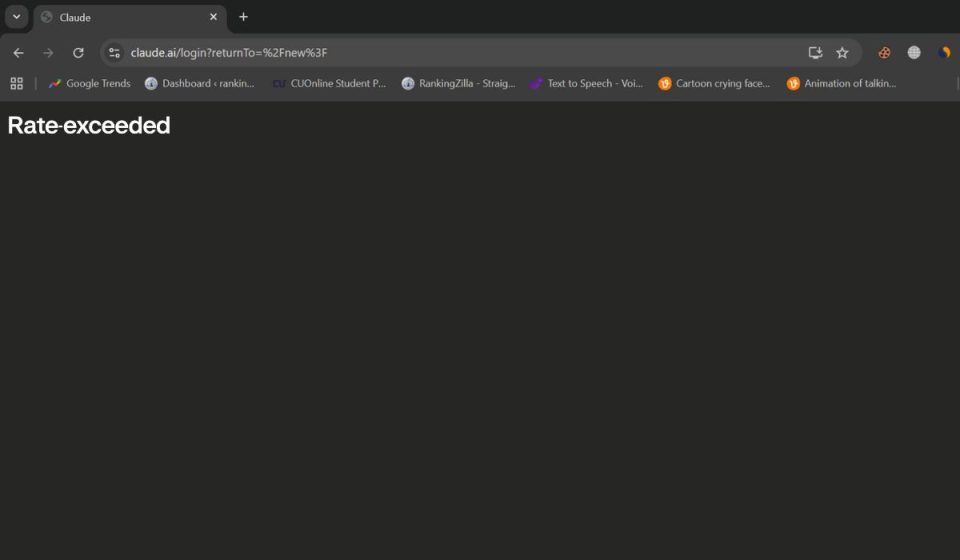
The Claude AI rate exceeded error means your account has reached a usage limit set by Anthropic. Claude AI controls how many requests can be processed within a short time window. This includes how often you send prompts, how large those prompts are, and how much output the system generates. When usage crosses that limit, Claude temporarily stops responding to protect system stability and fair access for all users.
You usually see this message inside the Claude web app as a warning banner or pop-up. If you use the Claude API, it often appears as an HTTP 429 error. The wording can change, but the meaning stays the same.
Common Causes of Claude AI Rate Exceeded Error
This error happens for different reasons depending on how Claude AI is used. These are the most common ones.
- Sending many prompts in a short time
- Using very long prompts or asking for large outputs
- Reaching free or plan-based usage limits
- Keeping multiple browser tabs or sessions open
- Sending burst API requests
- Sharing one account across devices or users
- Temporary throttling during high platform load
How to Fix Claude AI Rate Exceeded Error?
The rate exceeded error does not mean Claude AI is broken. It means the system needs you to slow down or wait for usage to reset. The fixes below focus on reducing request pressure and restoring normal access.
Try each fix calmly and test Claude after every step instead of rushing through them.
Fix #1: Wait for Usage Reset
Claude AI rate limits usually reset after a time window defined by Anthropic. When you hit the limit, the fastest fix is often to stop sending prompts and wait. Repeated retries can keep the limit active longer because each retry counts as another request. Waiting gives the system time to reset your quota naturally.
Claude does not always show an exact countdown, so patience matters here.
Fix #2: Reduce Prompt Size and Frequency
Large prompts and rapid follow-up messages use more tokens and requests. This pushes you toward the limit faster than expected. Long pasted text, repeated rewrites, or many variations all add up quickly. Reducing input size lowers usage and helps avoid throttling.
Send shorter prompts, wait for the full response, then send the next one. If you need to process long content, split it into smaller parts.
Fix #3: Close Extra Tabs or Sessions
Multiple active sessions can silently increase request count.
Here are the following steps which help you reduce active sessions.
- Close all extra Claude AI tabs
- Refresh the one tab you keep
- Log out from unused devices
- Reopen Claude AI in one session
- Send prompts one at a time
This keeps request flow under control.
Fix #4: Log Out and Log Back In
Session data can sometimes hold an old usage state even after waiting.
Try these simple steps to refresh the session.
- Log out of Claude AI
- Close the browser fully
- Reopen the browser
- Log back into your account
- Test with one short prompt
This can clear session-level limits.
Fix #5: Check Your Plan and Usage Limits
Free and lower-tier plans have stricter caps. If you write long content, code often, or test prompts repeatedly, you can hit limits quickly even with normal use. Checking your account plan helps you understand how much usage is allowed.
If you depend on Claude AI daily, upgrading may reduce how often this error appears. If upgrading is not an option, you will need to rely more on shorter prompts and slower pacing.
Fix #6: Adjust API Request Rate (API Users)
If you use the Claude API, rate exceeded errors often come from fast loops or parallel requests. Sending many calls at once can trigger throttling even if each call is small.
Space out requests, reduce concurrency, and avoid retry storms after an HTTP 429 response.
Prevention Tips to Avoid Claude AI Rate Exceeded Error
Prevention helps you stay productive and avoid repeated blocks. These habits make a real difference.
- Combine related questions into one prompt
- Keep prompts short and clear
- Avoid rapid retries after errors
- Close unused tabs and sessions
- Space out API requests
- Monitor usage if a dashboard is available
- Avoid sharing one account with others
Conclusion
In short, the Claude AI rate exceeded error means you reached a system limit on requests or usage. This can happen because of fast prompts, long inputs, many open sessions, or API request bursts. The error is temporary and meant to protect the service, not block you permanently. Waiting, reducing prompt size, and slowing down requests usually fixes it.
Try the fixes above and follow the prevention tips to avoid hitting the limit again. If the error keeps appearing even with careful use, contact Anthropic support for account-level help. If this article helped you, share it with others and leave a comment about what worked for you.